INTEGRATE
JENKINS TO
GITLAB WEBHOOK

Jenkins is an open source automation server. It helps automate the parts of software development relate to building, testing, and deploying, facilitacing continous integration, and continous delivery. It is a server-based system that run in servlet containers such as Apache Tomcat. It support version control tools, including AccuRev, CVS, Subversion, Git, Mercurial, Perforce, ClearCase, and RTC, and can execute Apache Ant, Apache Maven, and sbt based project as well as arbitrary shell script and Window batch command.
Webhook are custom HTTP callbacks triggered by an event such as pushing code to a repository or posting comment on an issue. Webhooks send JSON about the event to the URI configured for the webhook.
So here we want to Jenkins get triggered by gitlab webhook when anyone push code to specific branch.
Download Jenkins
Before we start, we should pray to your believe.
FYI: I'm using VPS with OS Redhat Enterprise Linux
Download jenkins here: Jenkins
Pick generic java package (.war)
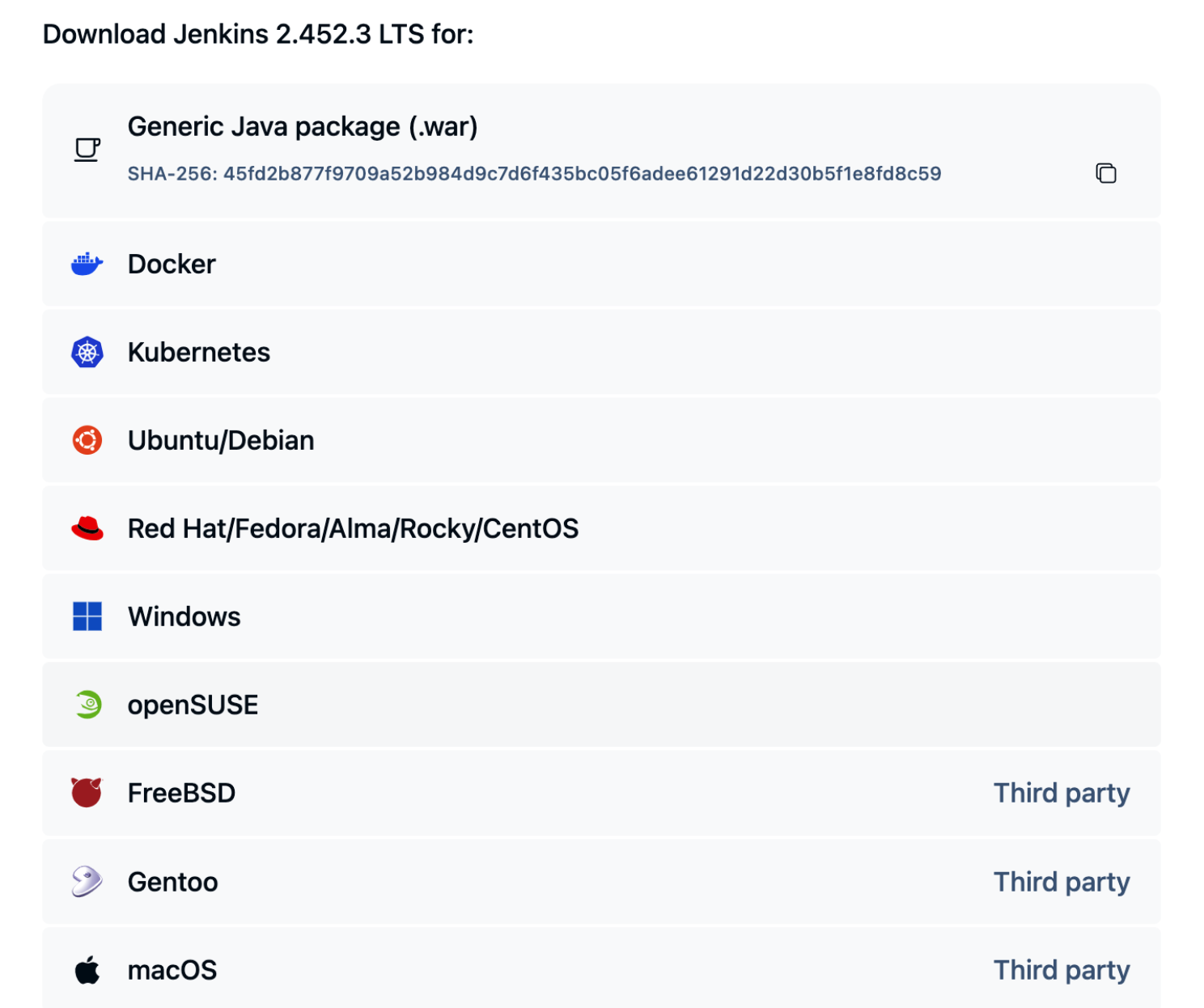
Then run java war.
nohup java -jar ${JENKINS_WAR} --httpPort=${JENKINS_PORT} &
For first access, get token from initialAdminPassword.
cat var/lib/jenkins/secret/initialAdminPassword
Copy token to unlock jenkins.
Don't forget to open firewall for your jenkins.
sudo firewall-cmd --zone=public --add-port=${JENKINS_PORT}/tcp --permanent
sudo firewall-cmd --reload
sudo firewall-cmd --list-port
sudo systemctl restart firewalld.service
Config Jenkins and Gitblab
The features in Jenkins are plugin-based. When you first install Jenkins, there are no plugins installed, so we have to install the plugins that we will use.
Add these plugin git, git gitlab, pipeline.
After plugin installed, add credentials that will be used to connect jenkins and gitlab.
Move to gitlab, then go into UserSetting -> Access Tokens.
If you haven't generated the token, generate it first.
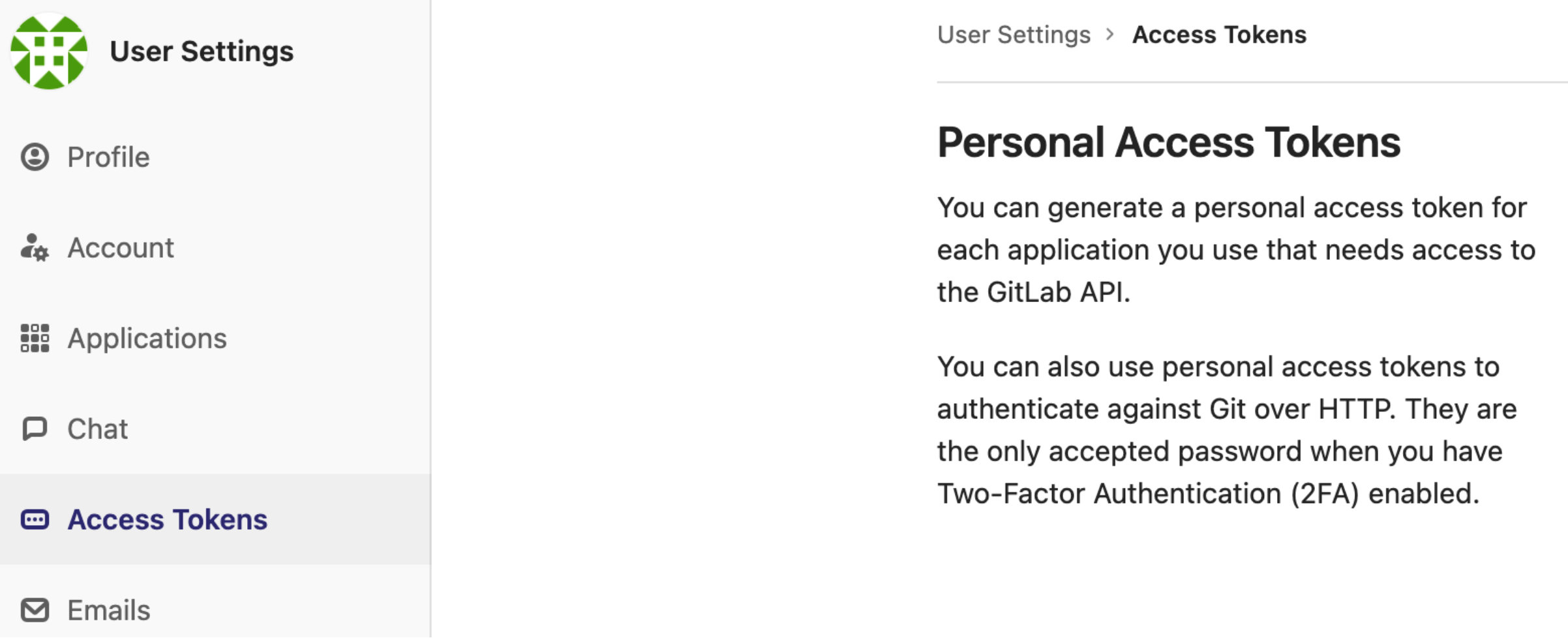
Once generated, save the token in your notes first (we will use later)
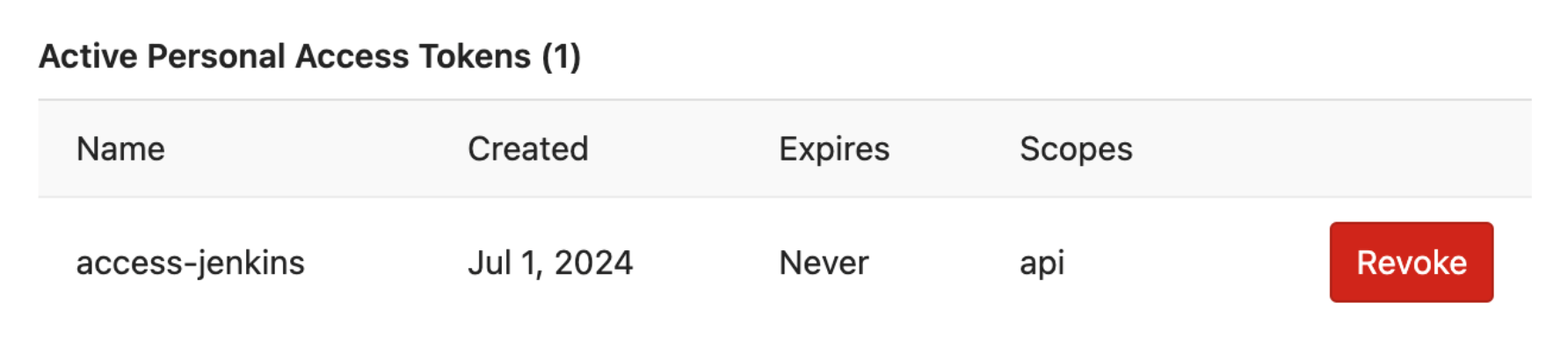
Access Jenkins on ${IP_JENKINS}:${JENKINS_PORT}
Move to menu Manage Jenkins, then Manage Credentials

Add credential, type gitlab api token, input value token from gitlab earlier.
Add credential, type username and password, fill username and password your gitlab.

Afterward, we will generate token from jenkins to connect webhook which will be sent from gitlab to jenkins.
Click profile select Configure.
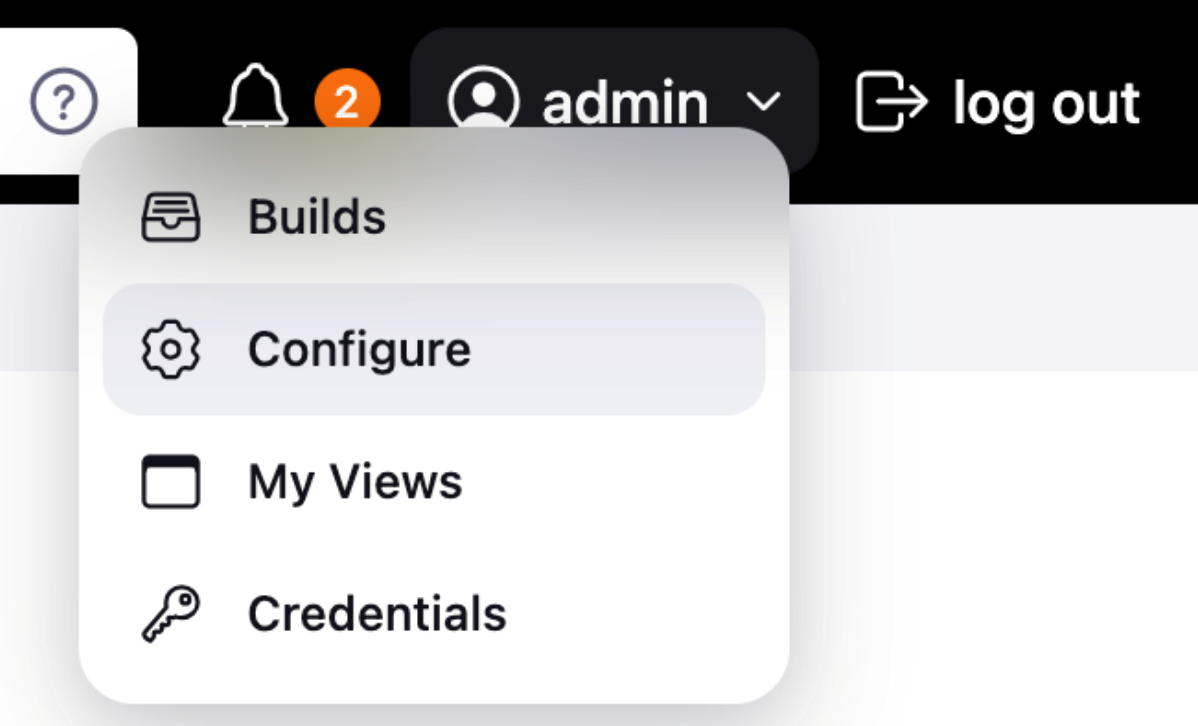
Add new token, keep token to note.
Back to your gitlab, open repository that will be added into jenkins
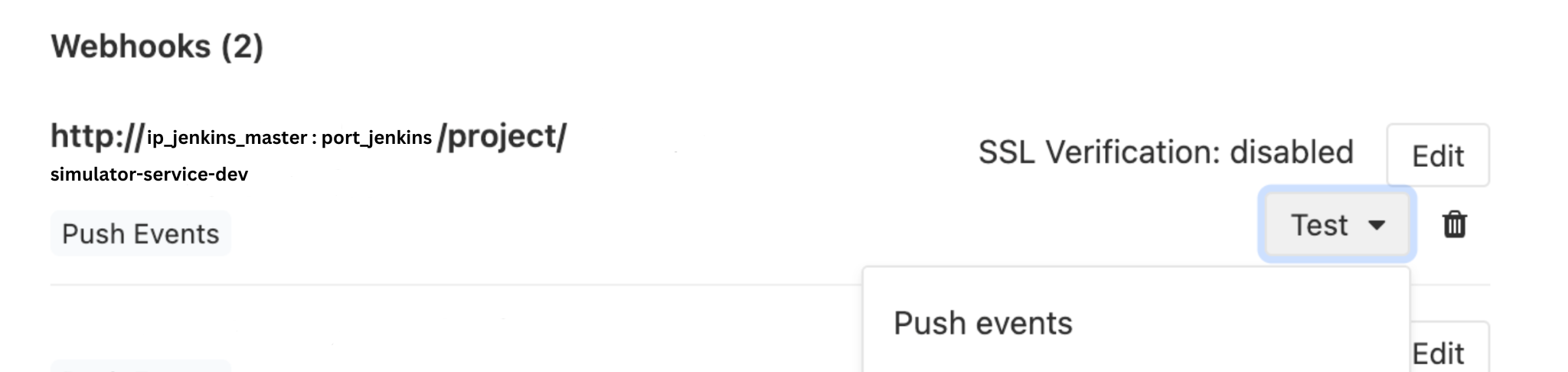
Menu Setting -> Integrations.
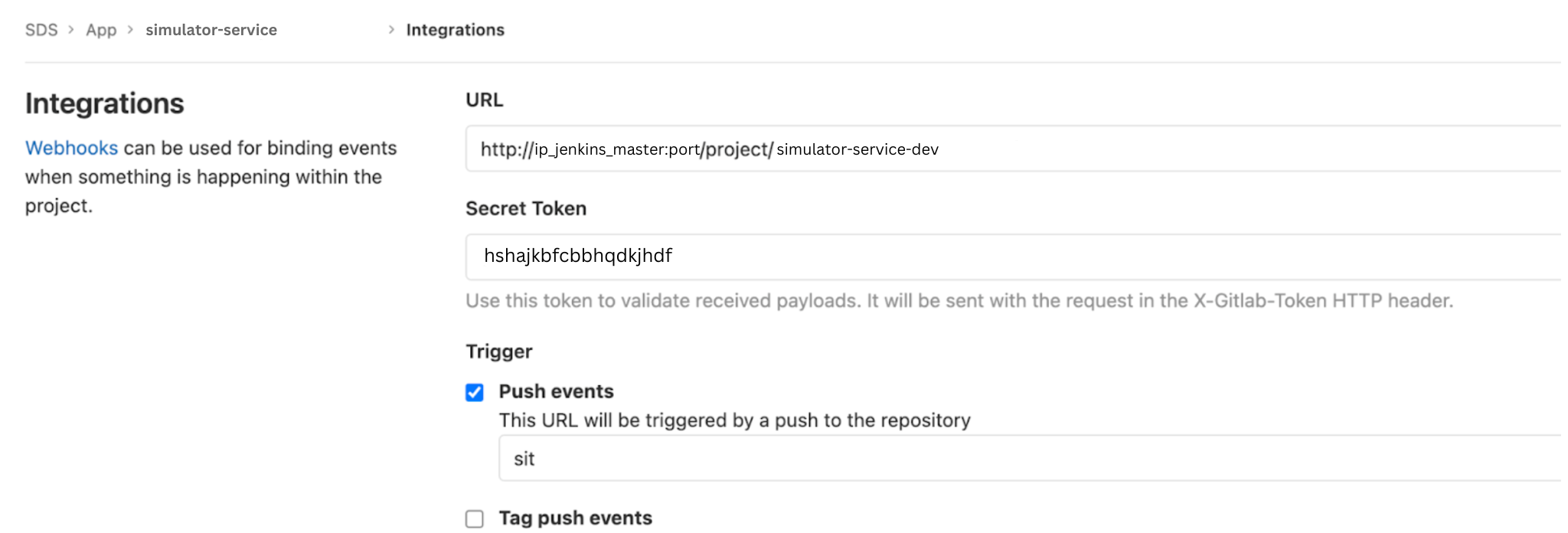
Back again to jenkins, create new project with a name that matches the project name in the URL integrations gitlab above.
Ah ya, at the same time we need to add Gitlab Connection in the menu Dashboard -> Manage Jenkins -> System Configuration
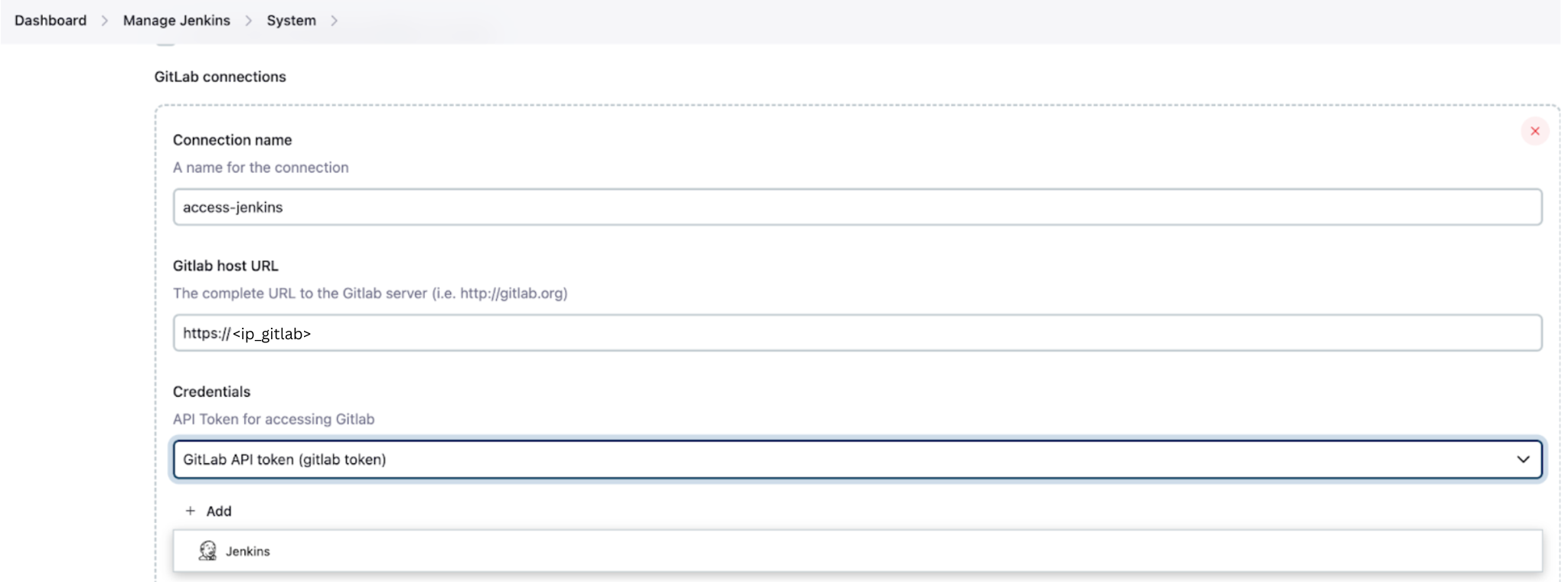
Input URL gitlab the gitlab token credentials that were added earlier
Go to Configure project, select access-jenkins that we already added.

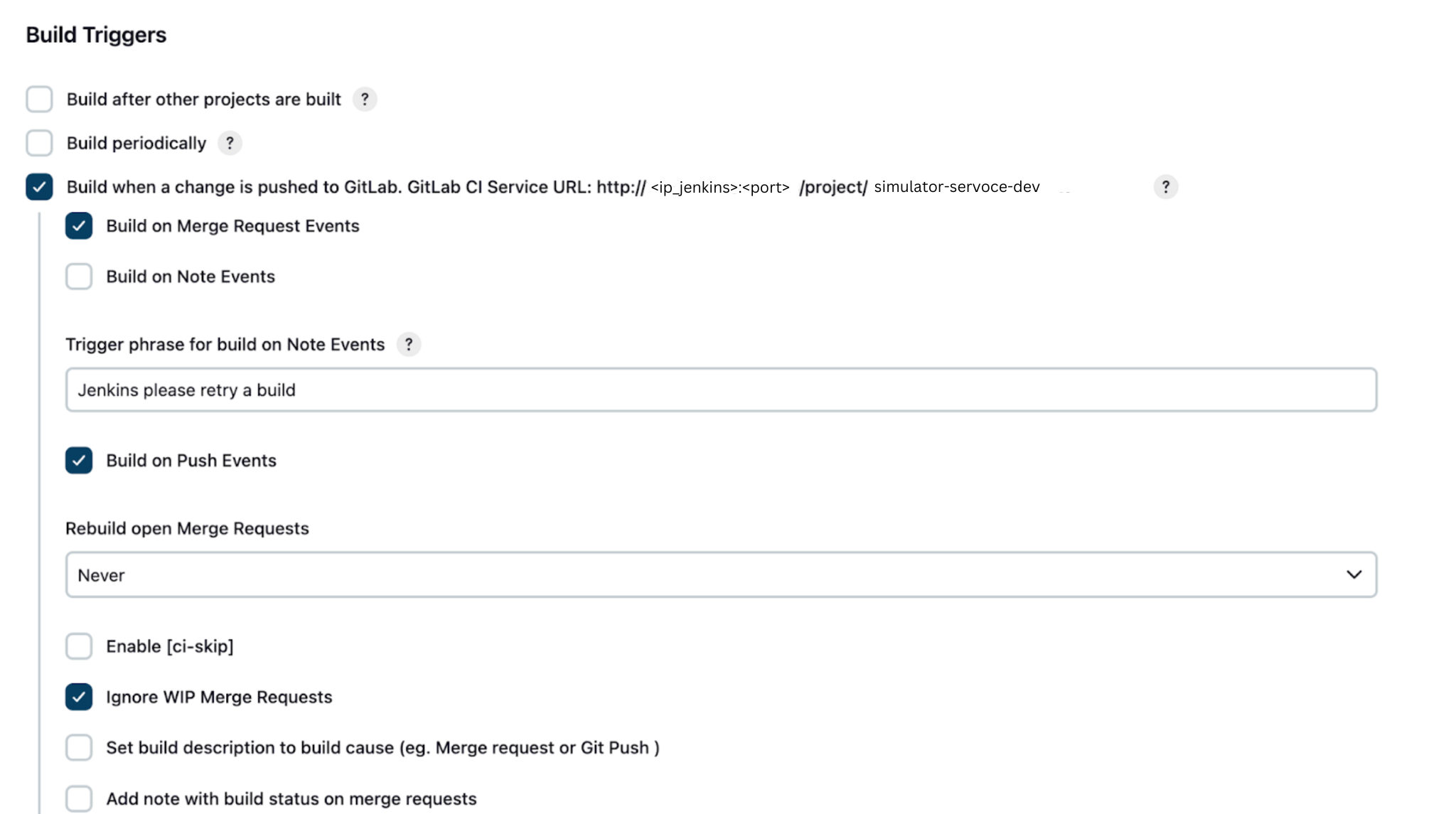
Set pipeline pointing to gitlab
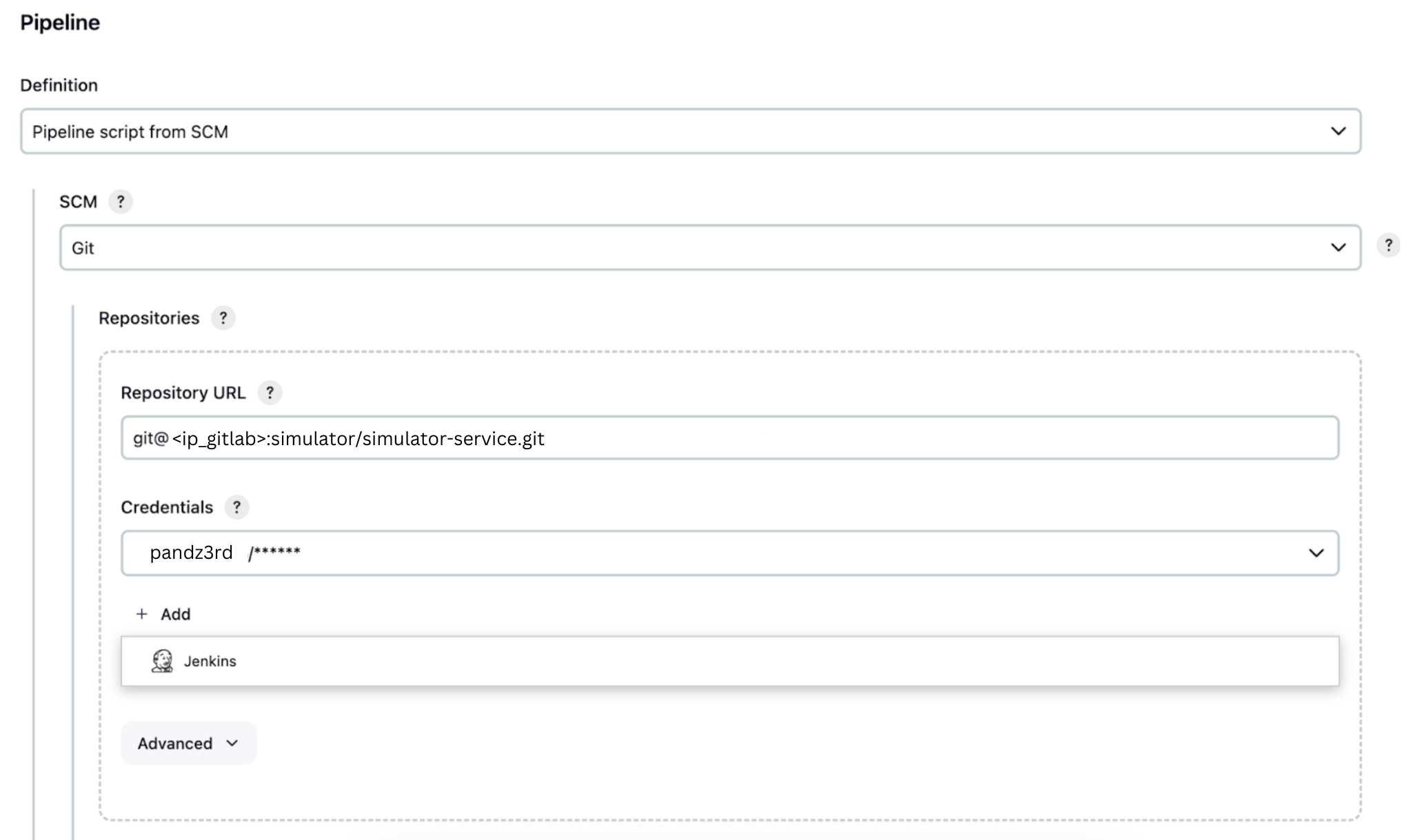
Pipeline read Jenkinsfile from git
Select branch as a trigger to run the pipeline
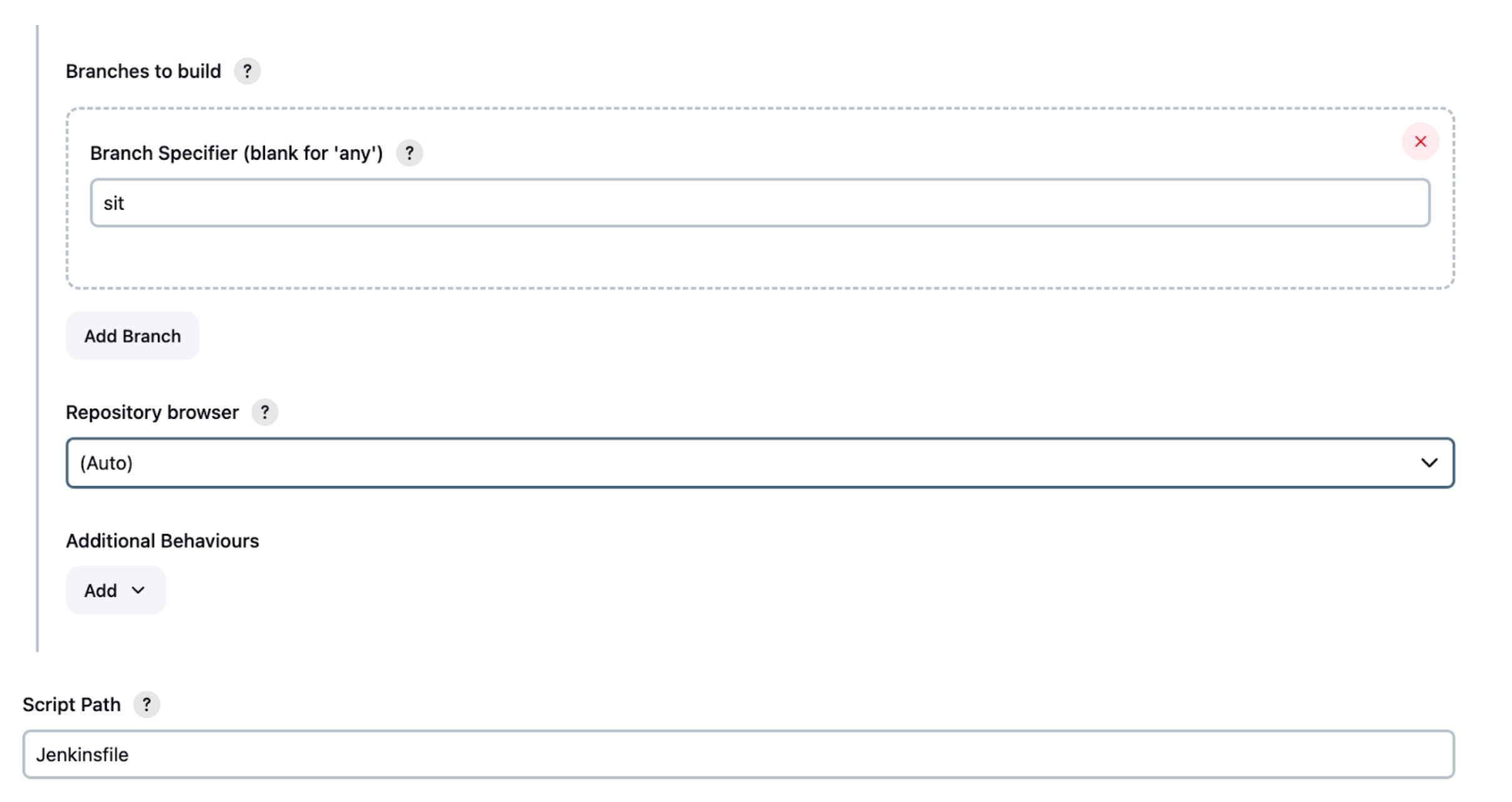
Oke, config jenkins pipeline is enough.
Setup Agent Jenkins
Next we will setup the agent. What is agent? We can think of the agent as a PC that will connect to the Jenkins PC (master). This agent will receive commands from the master to run the script in Jenkins.
We move to master jenkins PC.
Generate ssh key: ssh-keygen
2 files will generated at folder .ssh are id_rsa.pub and id_rsa.
cat id_rsa
Copy and take it to jenkins, add credentialfor type ssh username with private key.
Back to master jenkins PC
cat id_rsa.pub
Copy and take it to gitlab on the menu ssh keys, then add.
Oke next to jenkins, Manage Jenkins -> Nodes. Add new node.
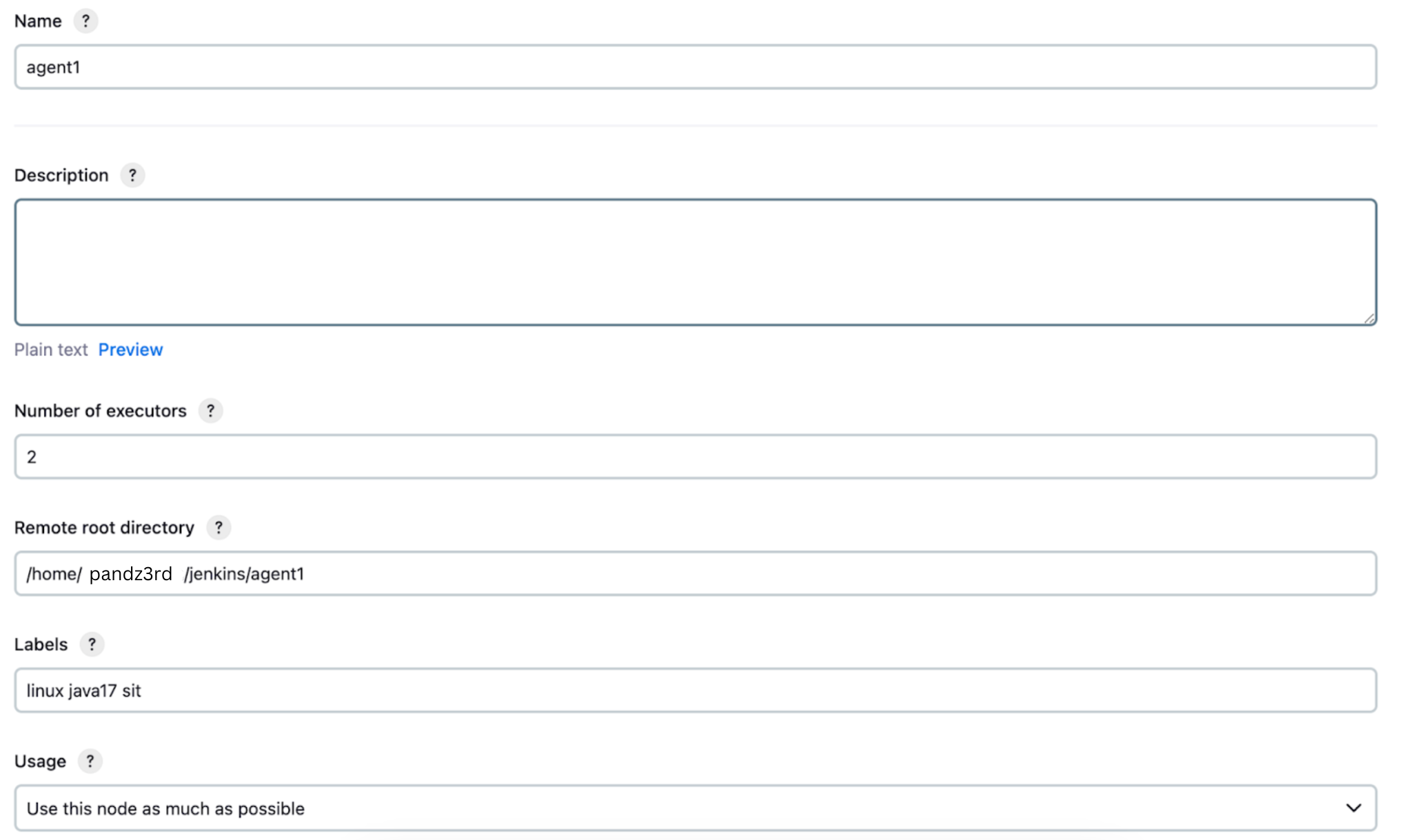
This remote root directory is the directory that will be used as workdir for Agent jenkins. This folder will be on Agent PC
These labels will be used as pipeline tags later when we selecting which agent will be use
Oke now move to Agent PC (here we run our service)
Download agent.jar from URL JENKINS MASTER:
curl -sO http://${IP_MASTER_JENKINS}:${PORT_JENKINS}/jnlpJars/agent.jar
Run agent.jar
java -jar agent.jar -url http://${URL_JENKINS}:${PORT_JENKINS}/ -secret 081fb90bf208e463196a268bdf7b8f92a6636ed51a7c4f81ed77d829e96b6dcb -name agent1 -workDir "/home/${USERNAME}/jenkins/agent1
Note: The secret here is already provided when we create it Node/Agent on master jenkins PC, just copy and paste it.
If error when run agent.jar, check firewall maybe you forget to open the port from firewall
To check port opened on firewall:
firewall-cmd --list-port
This is how the agent looks in Jenkins after being created.
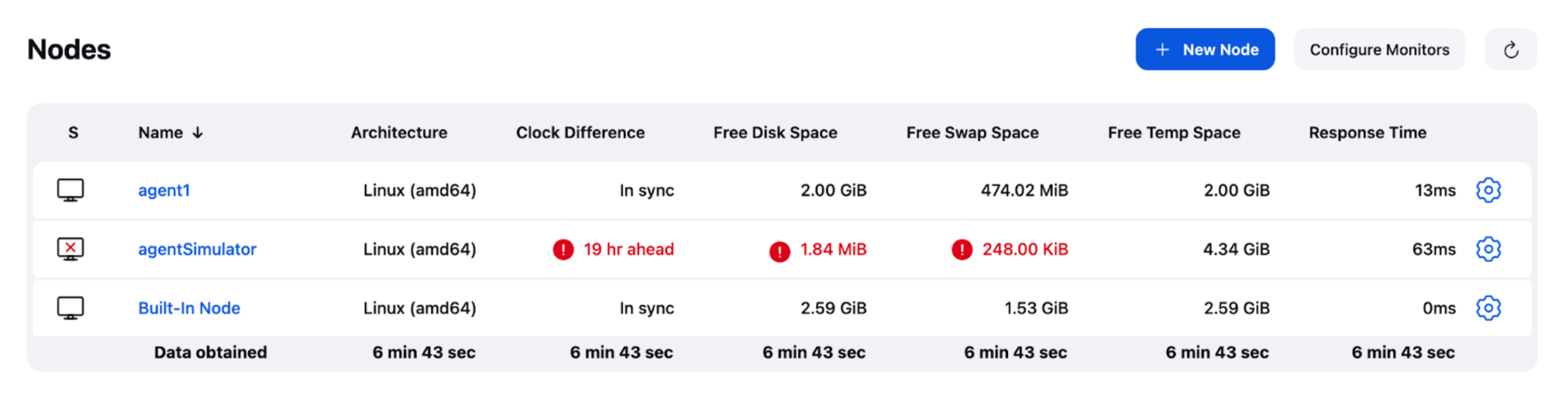
Note: It is better to disable the Node on master jenkins because it is not safe.
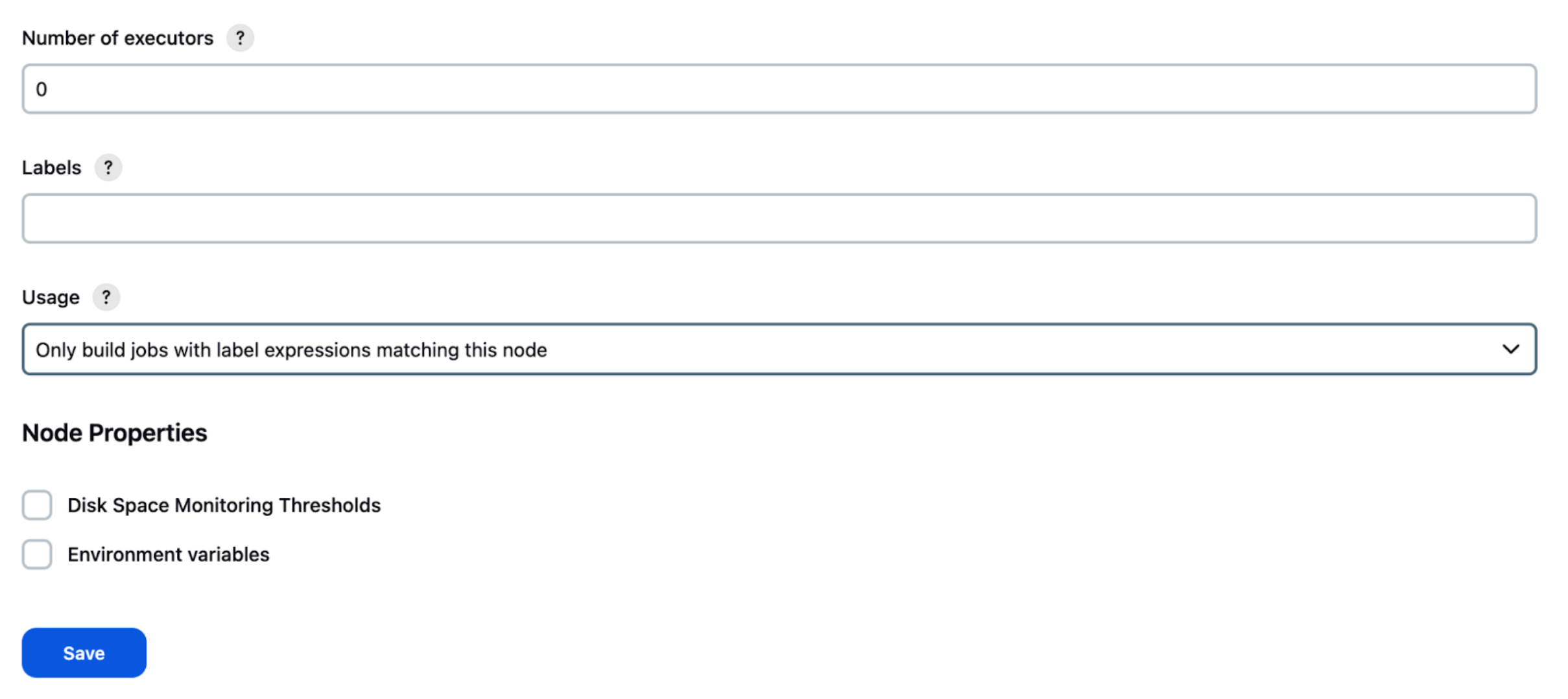
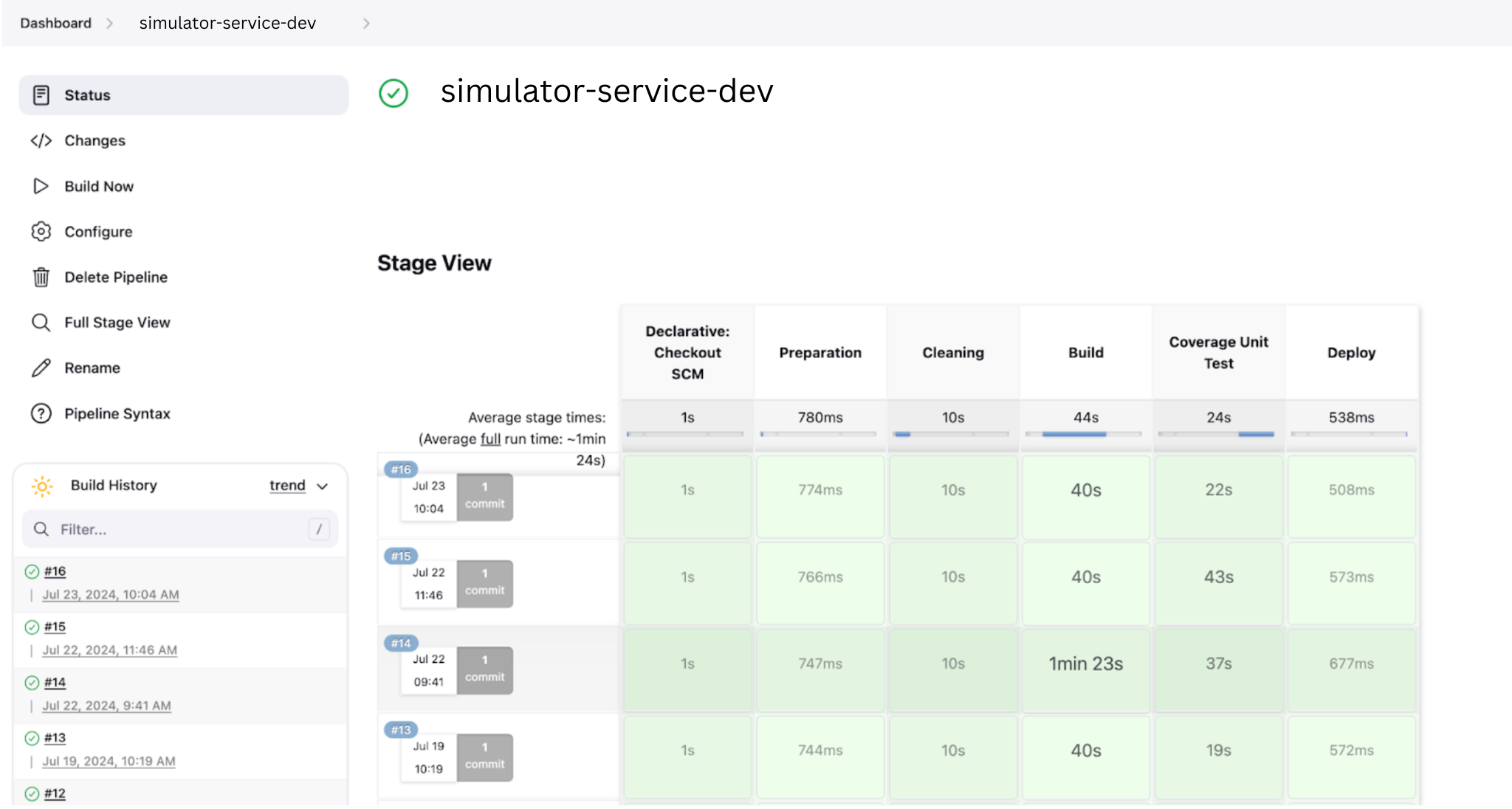
Lets try the test. Can try test webhook from gitlab or push code to branch which is set in the pipeline.
If successful and appropriate it will be like this.
DONE!


